 HumanReadTTS
HumanReadTTS
HumanReadTTS
Drop in a PDF, a Word file or an ebook and hear it read in a natural voice, in English, Chinese, or both.
Free, open source, and completely offline. Your documents never leave your Mac.
Download for macOSRequires macOS 15 or later on an Apple Silicon Mac · Installation help
There is no account to create and nothing to configure. Install it, open a file, press the space bar.
Open the downloaded file and drag HumanReadTTS onto your Applications folder. The first time you open it, hold Control and click the icon, then choose Open.
Drag a PDF, Word file, EPUB, Markdown or text file onto the window. Pictures of text work too, and are recognised automatically.
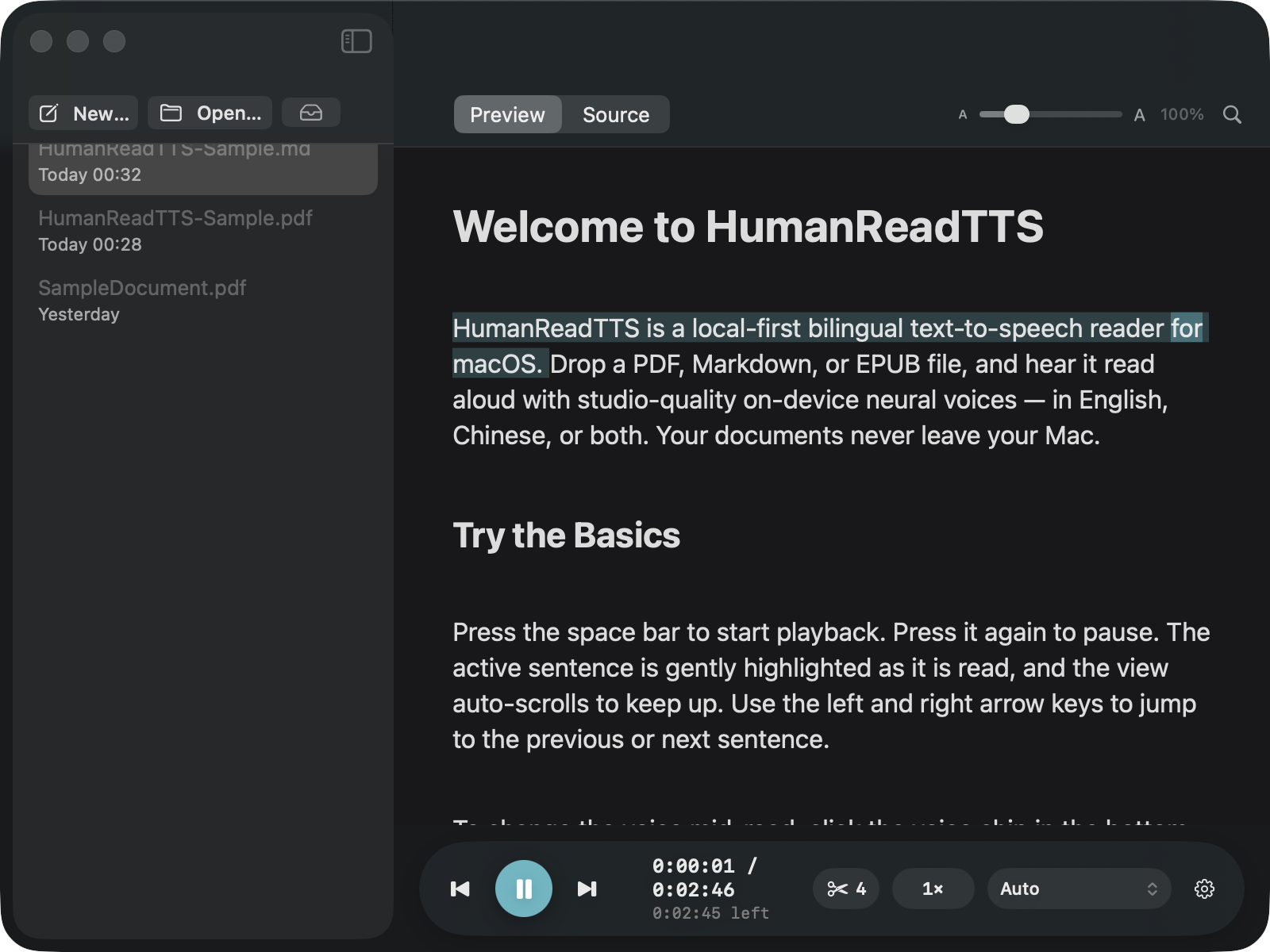
Reading begins, and the sentence being spoken is highlighted as it goes. Double-click any word to start from there instead.
Built for people who read long, dense documents: research papers, reports, and books.
Optional voice packs give you 28 English voices and 6 that handle English and Chinese equally well. They run on your Mac, so they keep working offline.
When a document mixes the two, the voice switches language by itself, sentence by sentence. Nothing to set up.
Two-column layouts are read in the right order, and citation numbers, LaTeX leftovers and figure captions are skipped instead of read out.
The current sentence is highlighted and the exact word being spoken is picked out. Scroll away to check something and one button brings you back.
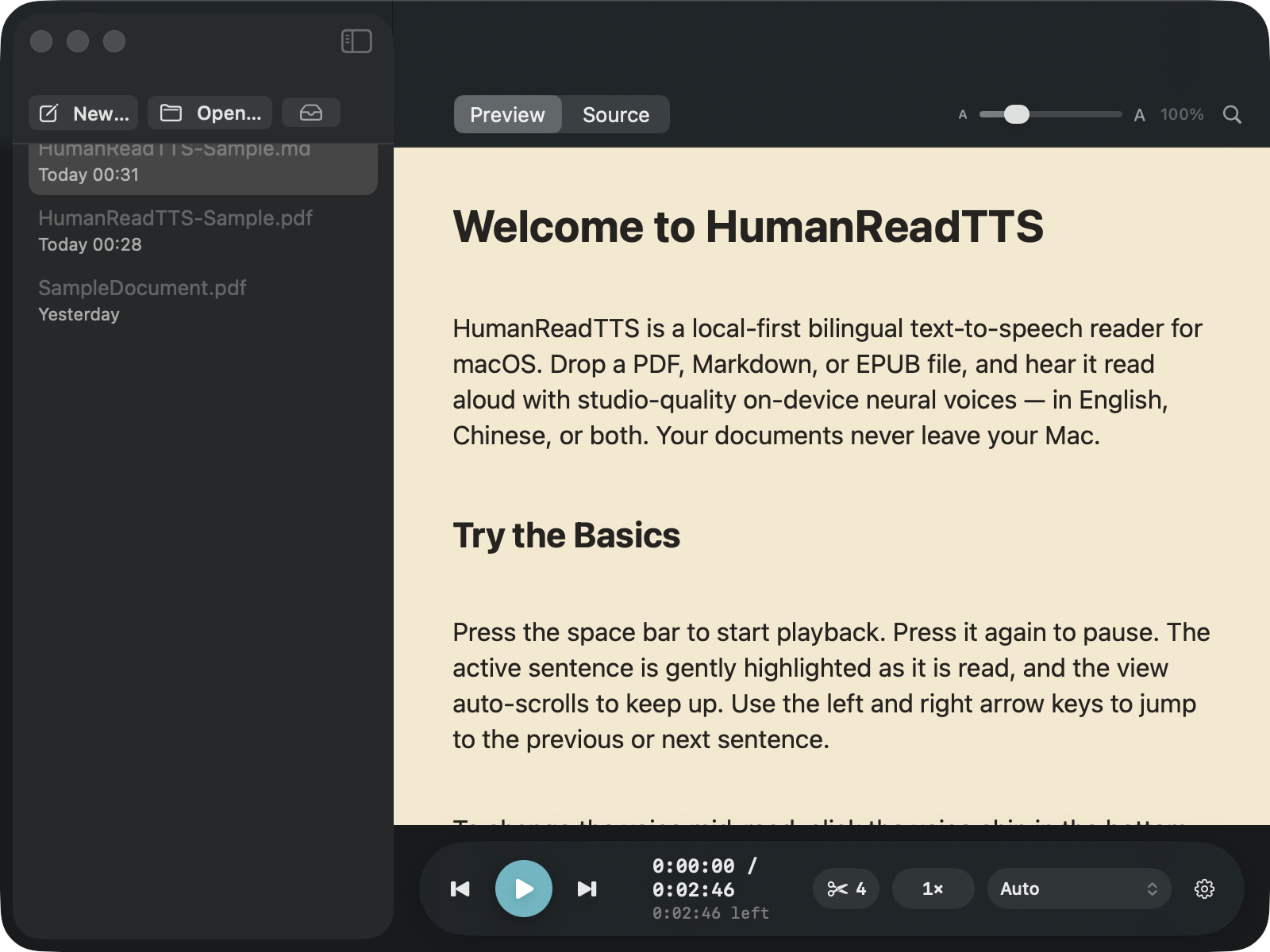
Sepia and night reading surfaces, adjustable spacing, a line-focus ruler, and the OpenDyslexic and Atkinson Hyperlegible typefaces included.
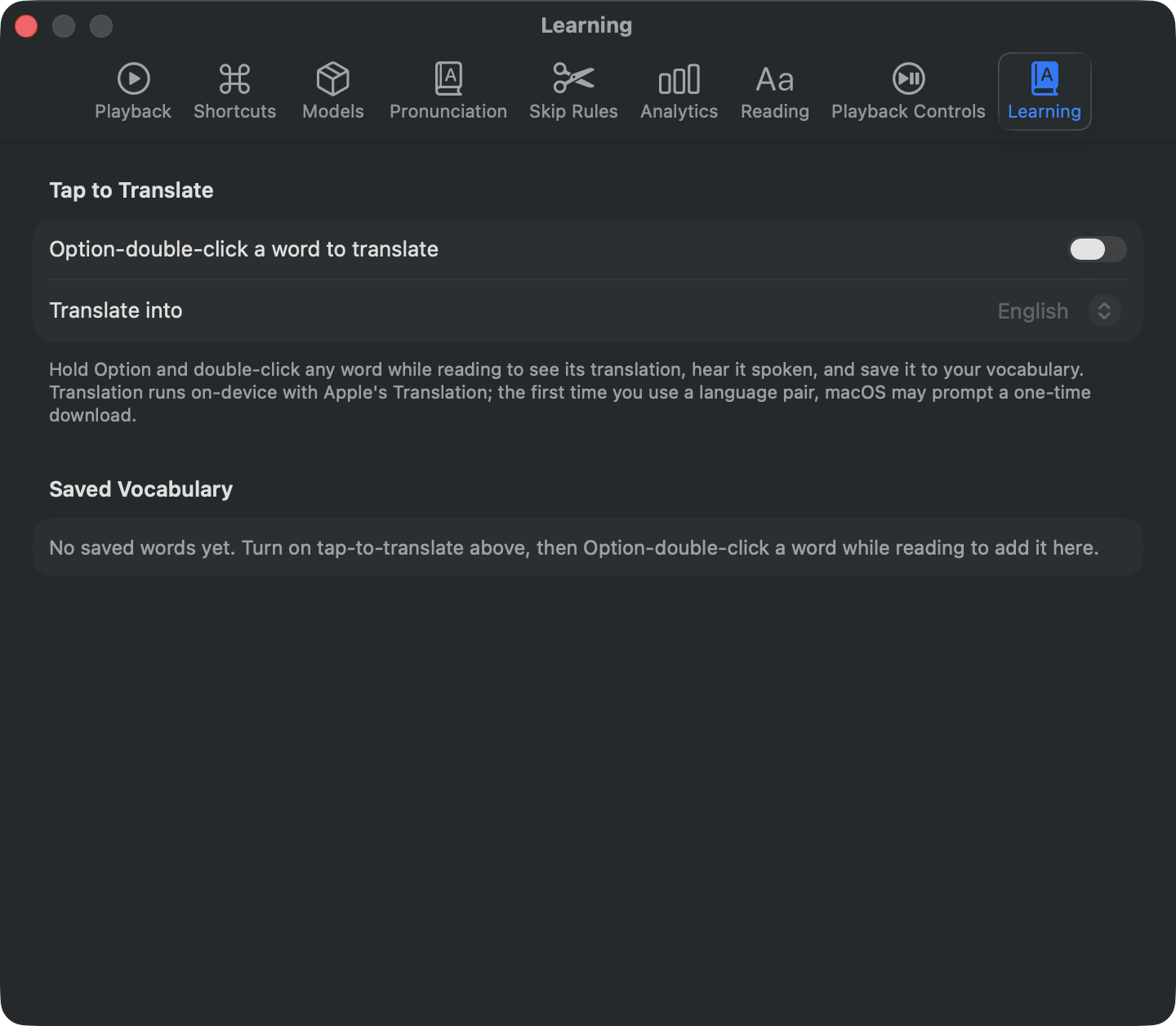
Option-double-click a word for an on-device translation, hear it spoken, and save it with its sentence. Export the lot to Anki as flashcards.
Select text in Safari, Mail or anywhere else and press Command + Shift + E to hear it, without opening a file.
Media keys and AirPods controls work, a sleep timer stops it after a set time, and you can save any document as an audio file for later.

Most reading apps upload your document to a server to turn it into speech. This one does not, which means you can use it on drafts and unpublished work.
Free, and it takes about two minutes to get to your first document.
Download for macOSNew to it? Start with the user manual.